


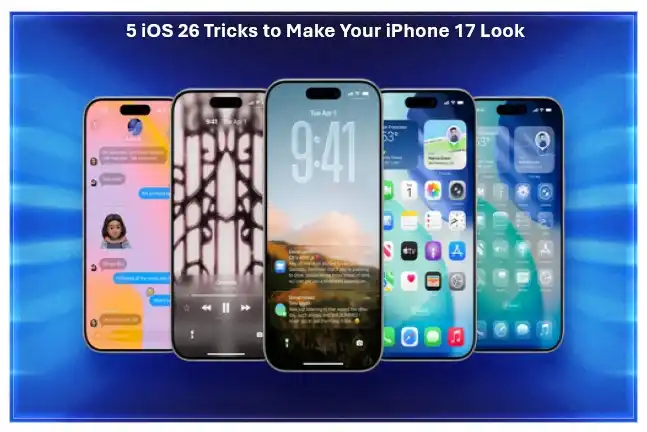
The iPhone 17 is a work of engineering genius, but the real marvel below the surface is iOS 26. The latest operating system from Apple has turned away from the “flat” design of the previous decade and introduced a refined, haptic approach to the look they call Liquid Glass.
And if, say, your phone is finally starting to feel like a tool you’re familiar with (as opposed to an exotic digital toy), these five iOS 26 tricks will refresh its interface, turbocharge it under the hood — and make your iPhone 17 feel like you cracked open the box for the first time this morning.
Get Good With The Clear “Liquid Glass” Theme
The biggest change I found in iOS 26 is the Liquid Glass UI. This is the first time Apple has allowed a “Clear” icon theme that showcases your app icons in translucent, refraction style glass tiles. And this gives your wallpaper impression behind the icons, which are some floating on the wallpaper with a nice shadow.
How to do it: Long-press on an empty spot on your Home Screen until your apps all jiggle. Tap the top-left Edit button and choose Customize.
Pro tip: Pick Clear to trick the system. For real pop, pair this with one of the new “dynamic flow” wallpapers. In fact, the icons reel as a kind of colored refraction from the wallpaper behind, and in a certain way make this screen feel like an object rather than a sheet.
Enable ‘Spatial Scenes’ on Your Lockscreen
It can be damn fluid though, as the iPhone 17’s ProMotion display demonstrates – and in iOS 26 that’s all put to use via Spatial Scenes. This feature leverages the A19 chip’s neural engine to convert a run-of-the-mill 2D photo into a three-dimensional environment that responds according to how you tilt your phone.
How to do it: From your Lock Screen, long press and tap the plus icon to add a new wallpaper. Select a high-resolution portrait or landscape image.
The Trick: Tap the new Hexagon icon in the lower corner. Your iPhone will use that photo to determine the depth layers. Once “set,” time will flow fluidly around subjects in the photo, and as you move your phone, the perspective of time changes slightly to create a kind of “window” effect that feels transcendently real.
Shush the Din with ”Call Screening & Hold Assist”
Nothing ages a phone like getting hit with spam or standing on hold for 20-plus minutes. iOS 26 adds Call Screening, which finally puts an end to peace when using your iPhone.
The Trick: Open Settings > Phone > Call Screening. When a number you don’t recognize is on the line, simply tap “Screen call.” Your iPhone (earlier with a localized Siri voice) will pick up the call and inquire as to who is calling, what it is for. You will now see a live transcript on your screen.
Bonus: If you find that you must call a business and it puts you on hold, make use of Hold Assist. Tap the “Wait for Me” button that is shown on the call screen. You can hang up and call the Times back, or you can switch apps; your iPhone will remain in a queue and buzz with a high-priority Haptic alert the instant an actual person picks up at The Times.
Clear Your Life Using “Visual Intelligence”
Visual Intelligence is essentially the “Google Lens” for Apple+ it’s just better integrated! It lets you use the world as your camera and even within your screenshots to perform repetitive tasks.
The Trick: Swipe right from your Lock Screen to start the camera, or snapshot just about anything.
The Power Move: When you see a printed flyer for a concert or a QR code on the menu, long-press that Visual Intelligence button (the sparkling eye icon). It can automatically add your appointment to your calendar, with the correct location, or identify a clothing item and find it on a sustainable marketplace. It removes “copy-paste faff” and gives the phone a sense of being a proactive assistant.
Switch On “Adaptive Power” for Snappy Stamina
One reason phones feel “old” is that they begin to stutter as the battery wears or when too many background processes accumulate. iOS 26 : Adaptive Power – Something between “LowPowerMode” and “High Performance”
How to do it: Settings > Battery > Power Mode
The Trick: Select Adaptive. But unlike with the old Low Power Mode, which locked your screen to 60Hz, too, I have found the Adaptive Power mode keeps ProMotion at 120Hz when you’re scrolling around but also aggressively throttles background data and indexing activities when you are not using your phone.
The Upshot: Your iPhone 17 will remain cool to the touch and open apps faster than you can say “My, does that phone go fast!” It’s also not afraid of a second day in between charges.
A Final Performance Tweak
To make the Photons feel modern and “clicky,” go to Settings, Accessibility, Touch, Haptic Touch and set them up for Fast. Coupled with the Liquid Glass animations, your iPhone will feel as good as new.
