


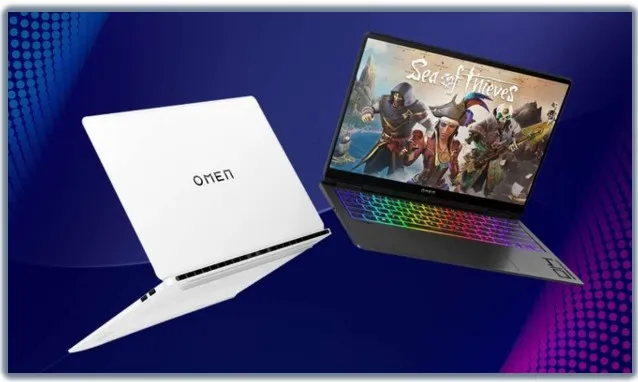
OMEN laptops are purpose-built gaming machines, packing high-performance CPUs and GPUs into a mobile chassis. To truly unlock their potential and achieve peak framerates and responsiveness, you need to go beyond the default settings. The key to optimal performance lies in mastering the OMEN Gaming Hub and intelligently tweaking in-game graphics for a perfect balance of visual quality and speed.
I. System-Level Optimization via OMEN Gaming Hub
The OMEN Gaming Hub is your mission control center for maximizing performance. Start here for the most significant, system-wide improvements.
1. Performance Control (The Power Switch)
- Mode Selection: Always ensure you are plugged into power and set your laptop to Performance Mode (sometimes called Turbo Mode). This increases the CPU/GPU power limits and sets an aggressive fan curve, allowing your components to run at their highest stable clock speeds.
- OMEN AI: For most users, enabling OMEN AI is the simplest and best choice. It automatically configures system settings (OS and hardware) for the best FPS in supported games, taking the guesswork out of optimization.
2. Thermal Management (The Cooldown)
Heat is the enemy of performance in laptops. OMEN’s cooling is robust, but user management is critical.
- Fan Speed: In Performance Control, you can select the Max fan setting for the most demanding games. While louder, this actively dissipates heat and prevents thermal throttling, ensuring your framerate doesn’t suddenly drop.
- Physical Setup: Use a cooling pad and ensure the laptop is on a hard, flat surface (never a blanket or lap) to allow for maximum airflow into the bottom vents. Monitor temperatures in the System Vitals tab to ensure the CPU/GPU stays below 90% under load.
3. Optimizer Tools
- Booster and Cleaner: Use the Optimizer section within the Gaming Hub to clean up unnecessary files and processes. The Booster tool helps prioritize system resources specifically for your game, shutting down non-essential background applications.
II. Windows and Driver Configuration
These settings ensure the operating system is not interfering with your game performance.
- Windows Game Mode: Go to Windows Settings > Gaming > Game Mode and ensure it is ON. This tells Windows to prioritize gaming processes.
- Power Plan: In Windows Settings, search for Power & Sleep and choose the High-Performance plan to ensure the CPU is not downclocked to save energy.
- Driver Updates: Always keep your NVIDIA or AMD graphics drivers up to date, using the respective software (GeForce Experience or AMD Software). New drivers often contain specific game optimizations that lead to significant FPS boosts.
III. In-Game Graphics Settings Hierarchy
Once your system is tuned, the final, subtle optimizations happen inside the game. This process is about balancing visual impact against performance cost.
- Resolution & Refresh Rate: Always match the in-game resolution to your laptop’s native display resolution (e.g., 1920×1080 or 2560×1440) and set the refresh rate to match your panel’s maximum (e.g., 144Hz or higher).
- Shadows (The FPS Killer): Shadows are often the single biggest drain on the GPU. Set Shadow Quality to Medium or Low for a massive boost in framerate with a surprisingly small visual impact.
- Volumetric Effects & Reflections: Features like Volumetric Fog/Clouds and Ray-Traced Reflections are beautiful but highly demanding. Turn these Off or set them to Low in competitive titles.
- Texture Quality (The VRAM Eater): This impacts VRAM usage. If your OMEN has 8GB+ of VRAM (Video RAM), you can safely set Textures to High or Ultra. If you notice stuttering, reduce the texture quality.
- Anti-Aliasing & Scaling:
- DLSS/FSR: If your game supports NVIDIA DLSS or AMD FSR, enable it! Use the Quality or Balanced setting to render at a lower internal resolution and upscale, providing sharper visuals with significantly higher FPS.
- Anti-Aliasing: Use a light setting like FXAA or TAA. Avoid high-level MSAA unless you have performance to spare.
By combining the one-click power of the OMEN Gaming Hub with careful, strategic tweaking of the most demanding in-game settings, you can ensure your OMEN laptop consistently delivers the smooth, high-framerate experience it was designed for.
